Driving reports & scheduled exports
Generate or schedule distance, trip, stop, overspeed, geofence and travel-sheet reports for any device — exported as PDF, HTML or Excel.
Turn months of tracking data into answers
Tracking shows you where vehicles are right now. Reports show you what they\'ve been doing over a day, a week or a month. The TTC platform produces nine common report types — distance, trips, stops, overspeed, travel sheets, geofence events, event histories and more — covering nearly any operational, financial or compliance question a fleet operator might ask.
Every report can be generated on demand or scheduled to email itself on a daily, weekly or monthly basis. That means you can run an operation off scheduled reports and never need to log in unless you want to.
Common reporting setups
- →Monthly travel sheets — emailed to your accountant for SARS logbooks.
- →Weekly overspeed report — sent to the operations manager every Monday.
- →Geofence-time-spent report — proof of time on a customer site.
- →Daily stops report — quick visibility into where vehicles spent yesterday.
- →Monthly data archive — tracking data is kept for 90 days, so a scheduled monthly report banks each month\'s distance, drive time and stops before it rolls off.
Build and schedule a report
- 01
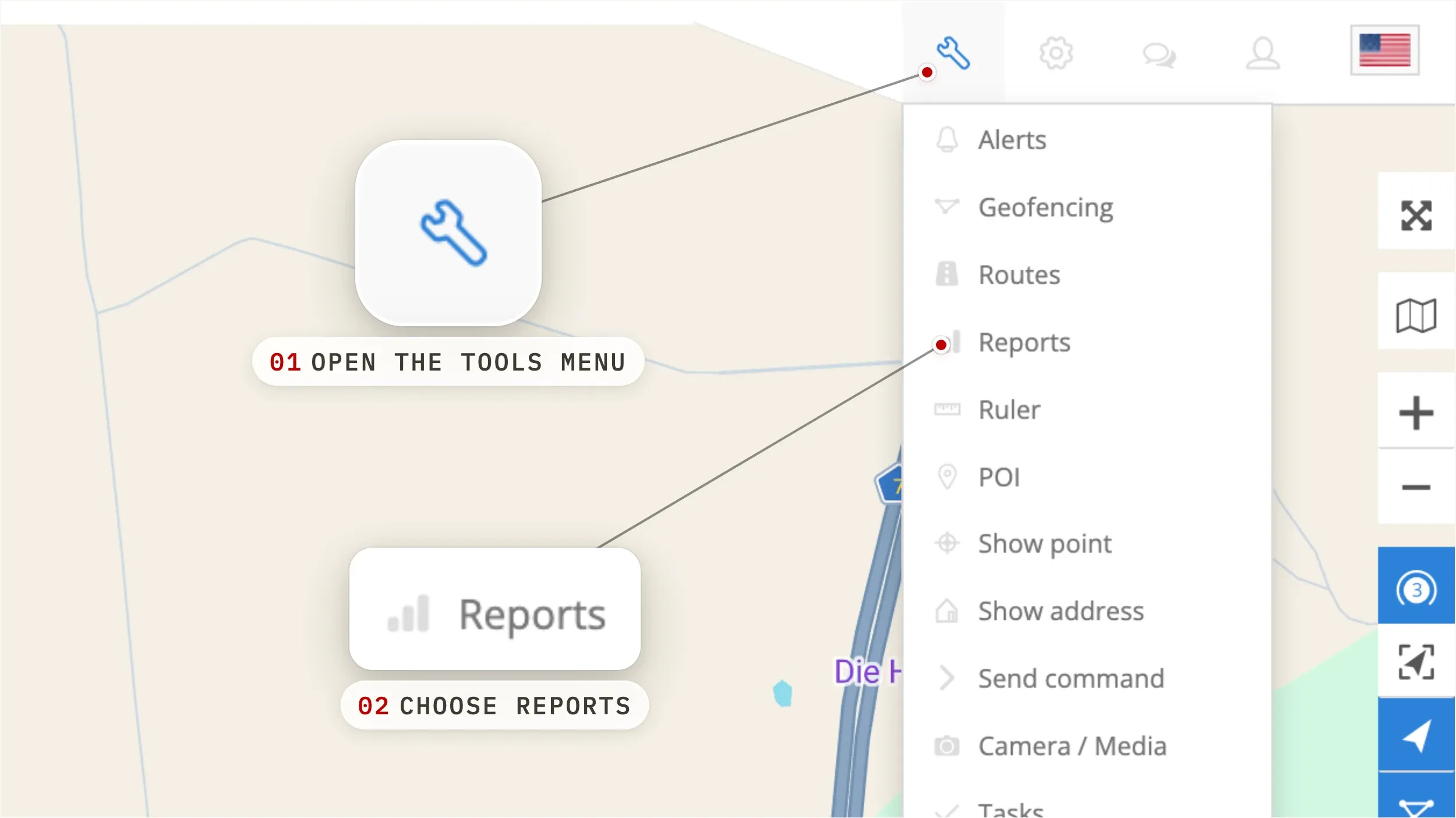
Open Reports from the Tools menu
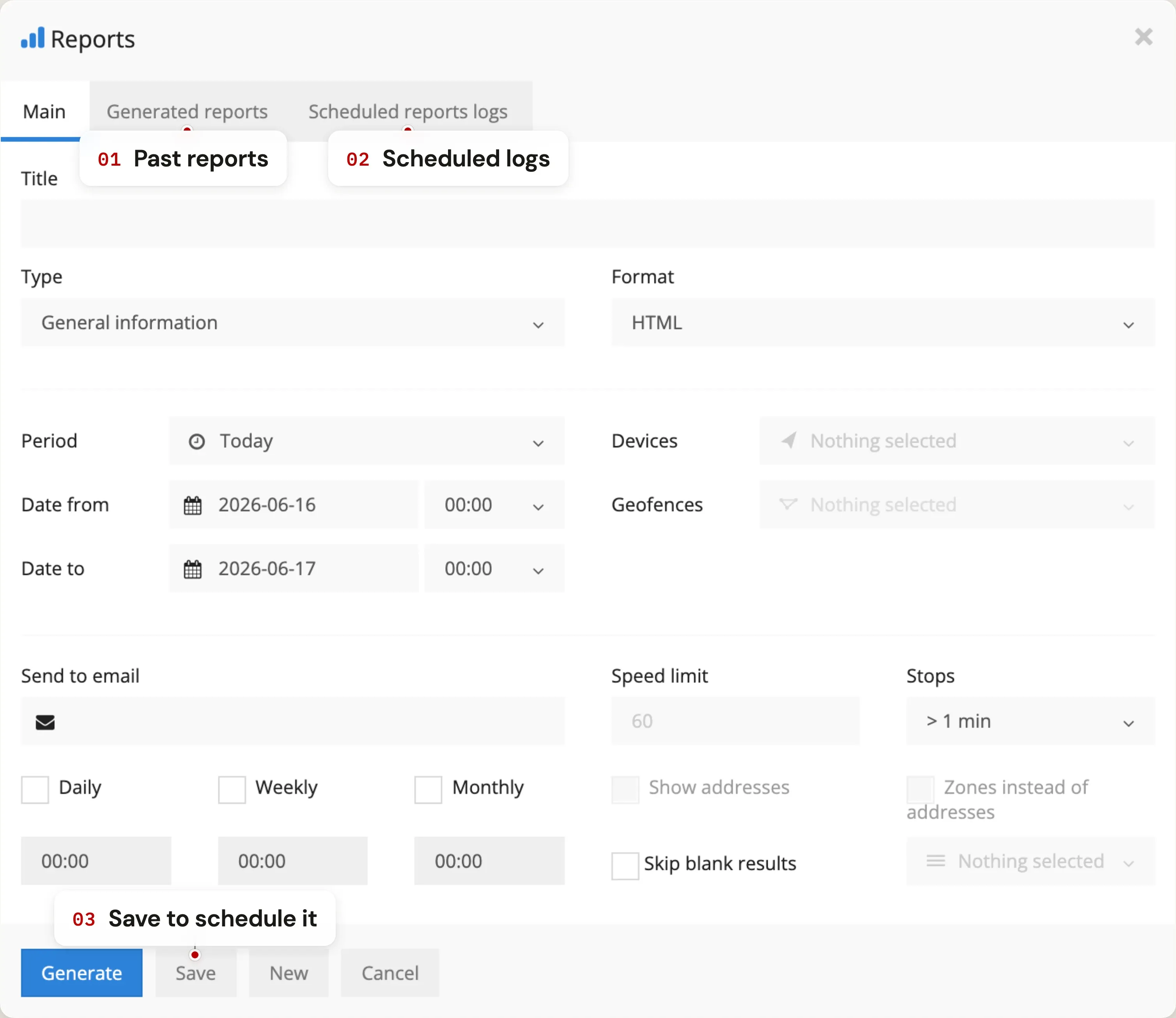
On the main map, click Tools and choose Reports. The Reports window opens on the Main tab — this is where every report is built. Configure the fields and hit Generate to pull a report once off, or click New to build one that runs on a schedule and emails itself.
- 02
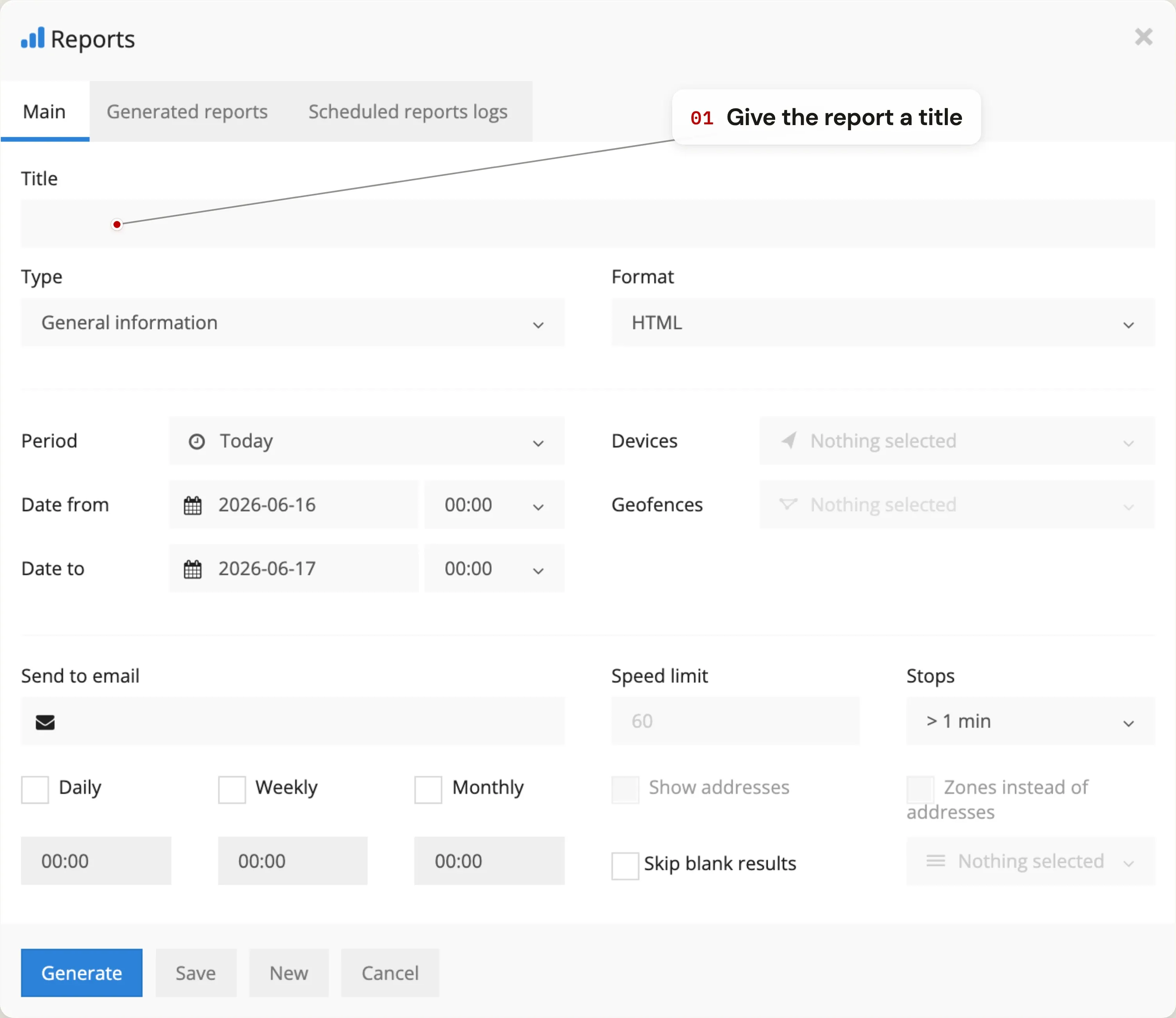
Give the report a title
Name the report so future-you knows what it is at a glance. Travel sheet — Monthly — All vehicles beats Untitled (3) every time. The title also appears in the email subject line when reports are scheduled.
- 03
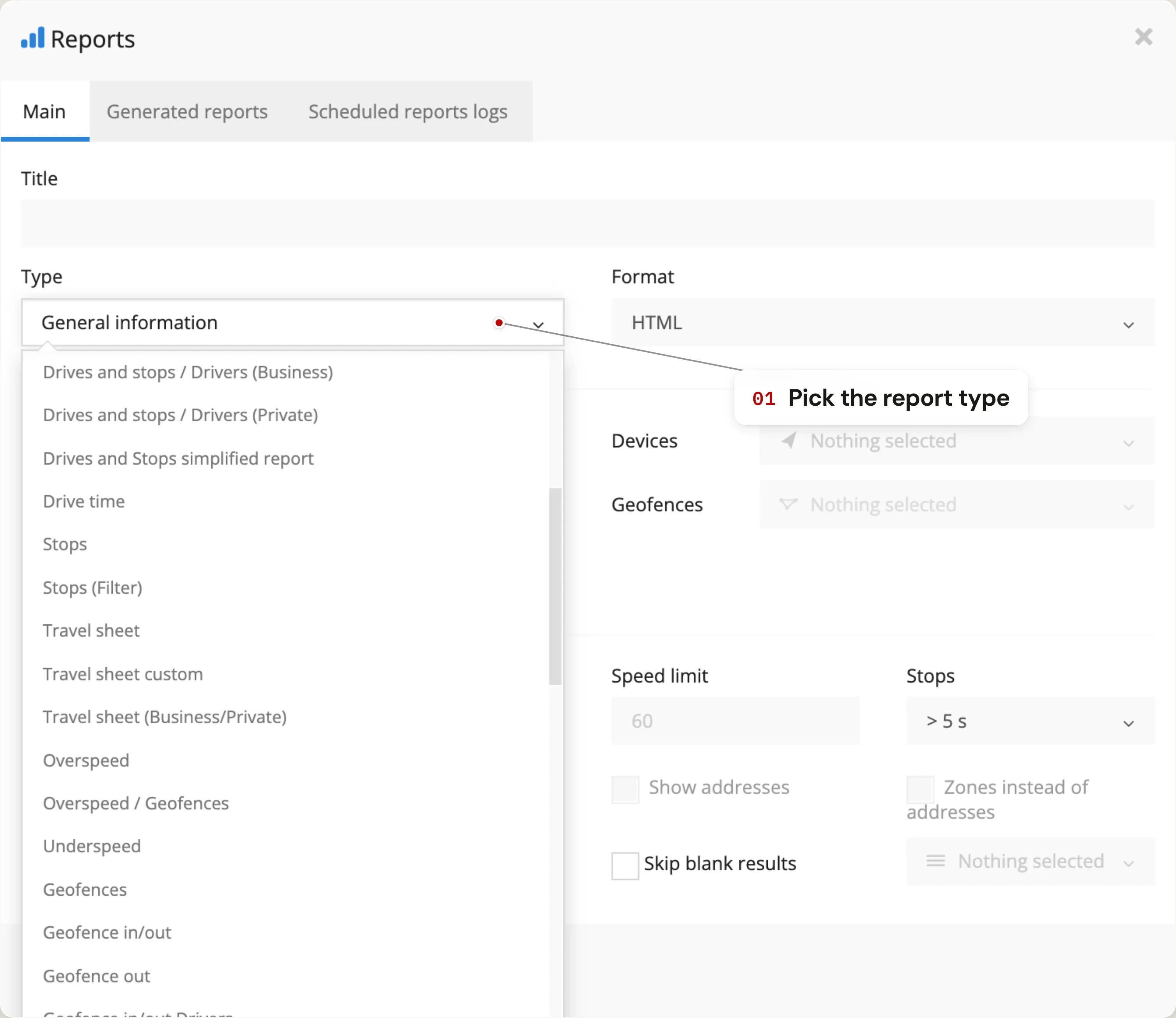
Pick the report type
Choose what the report should contain. The TTC platform supports nine common report types — pick the one that matches the question you're trying to answer.
- General information — Distance travelled, drive time, top speed — the high-level summary across the period.
- General information (merged) custom — The same summary, but broken out per day so you can see daily patterns.
- Drives and stops — Trips plus stops, with duration between stops and the address where the vehicle stopped.
- Drive time — Move duration, stop duration and distance — a clean view of how much time was actually spent moving.
- Stops — A list of every stop the vehicle made and where. Useful for driver routing and customer-visit audits.
- Travel sheet (custom) — Position A → Position B with route length and drive duration. Fuel consumption included when fuel sensors are present.
- Overspeed — Every case where the vehicle exceeded a speed you set. Useful for compliance and driver-behaviour reviews.
- Geofence in / out — Entry / exit times for the geofences you select, plus how long the vehicle spent inside each one.
- Event — Event-level history — power cuts, harsh driving, geofence in / out, ignition events.
- 04
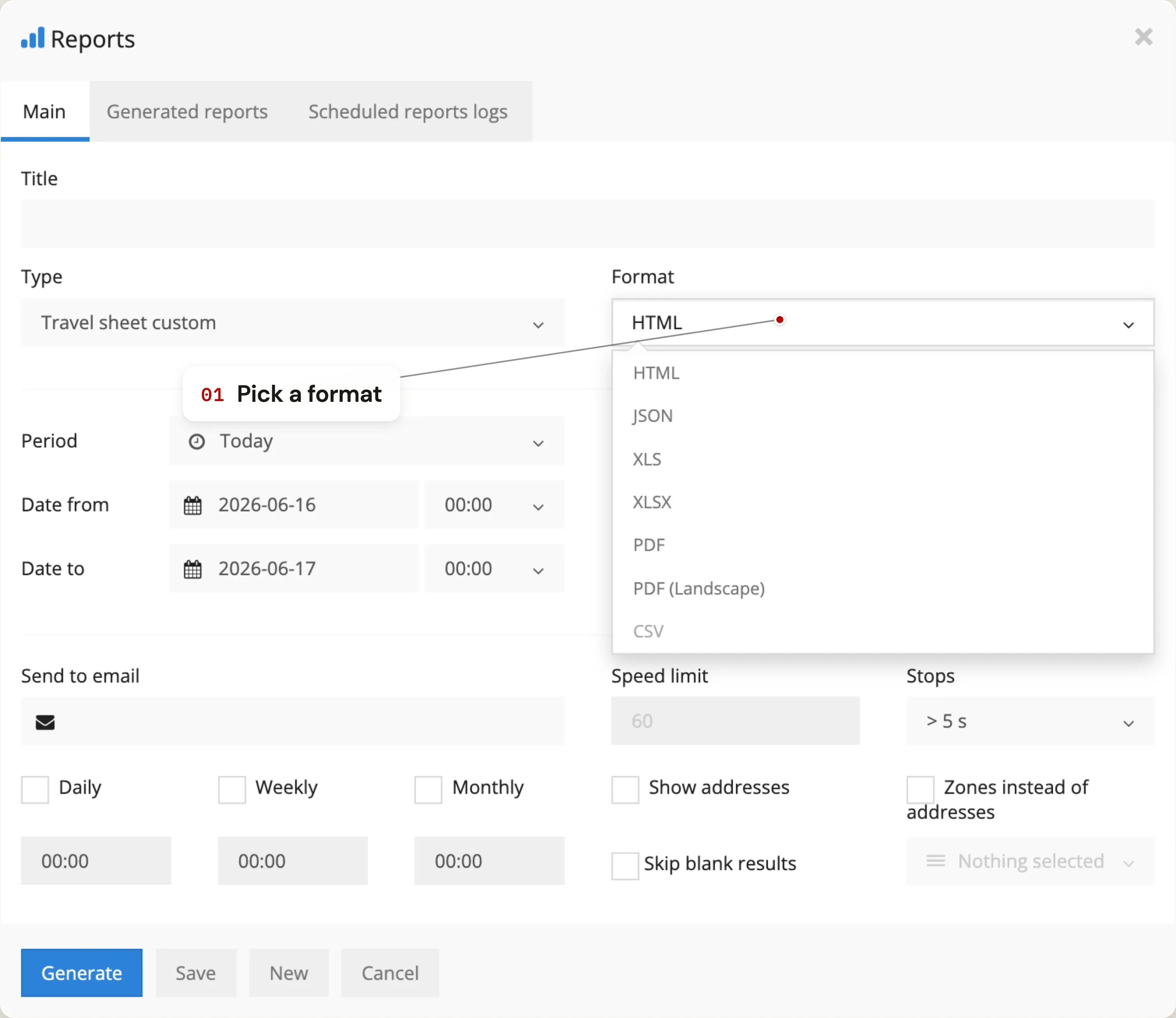
Pick a format
Choose PDF for printable / shareable records, HTML for a quick on-screen view inside the platform, or XLS for Excel. Accountants tend to ask for XLS; vehicle-handover files tend to want PDF.
- 05
Set the date range
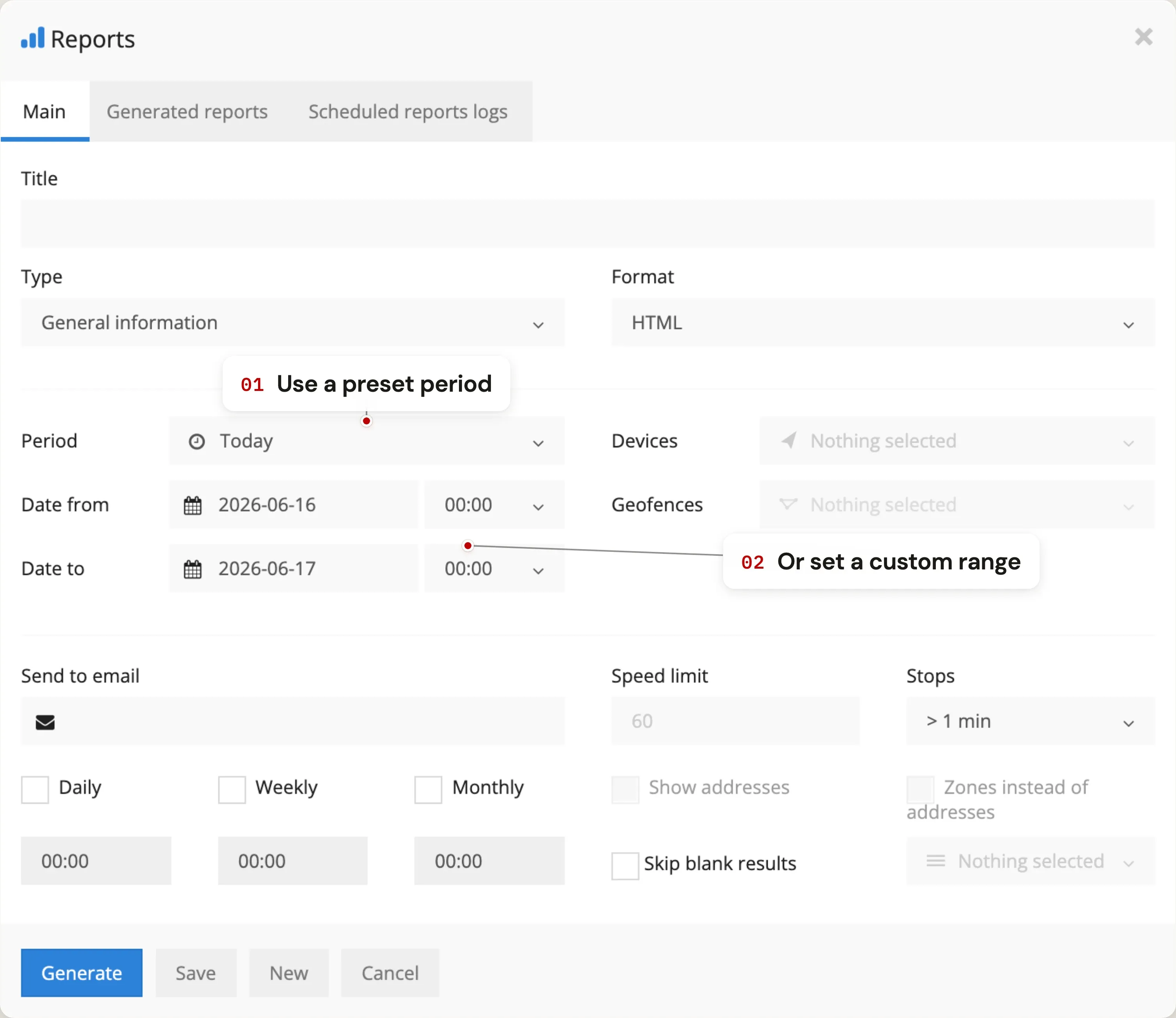
Use the Period dropdown for common ranges (today, this week, this month, last month) or set custom Date from / to values. Most scheduled reports want a rolling window like last 30 days; one-off audits usually want an exact date range.
- 06
Choose which devices to include
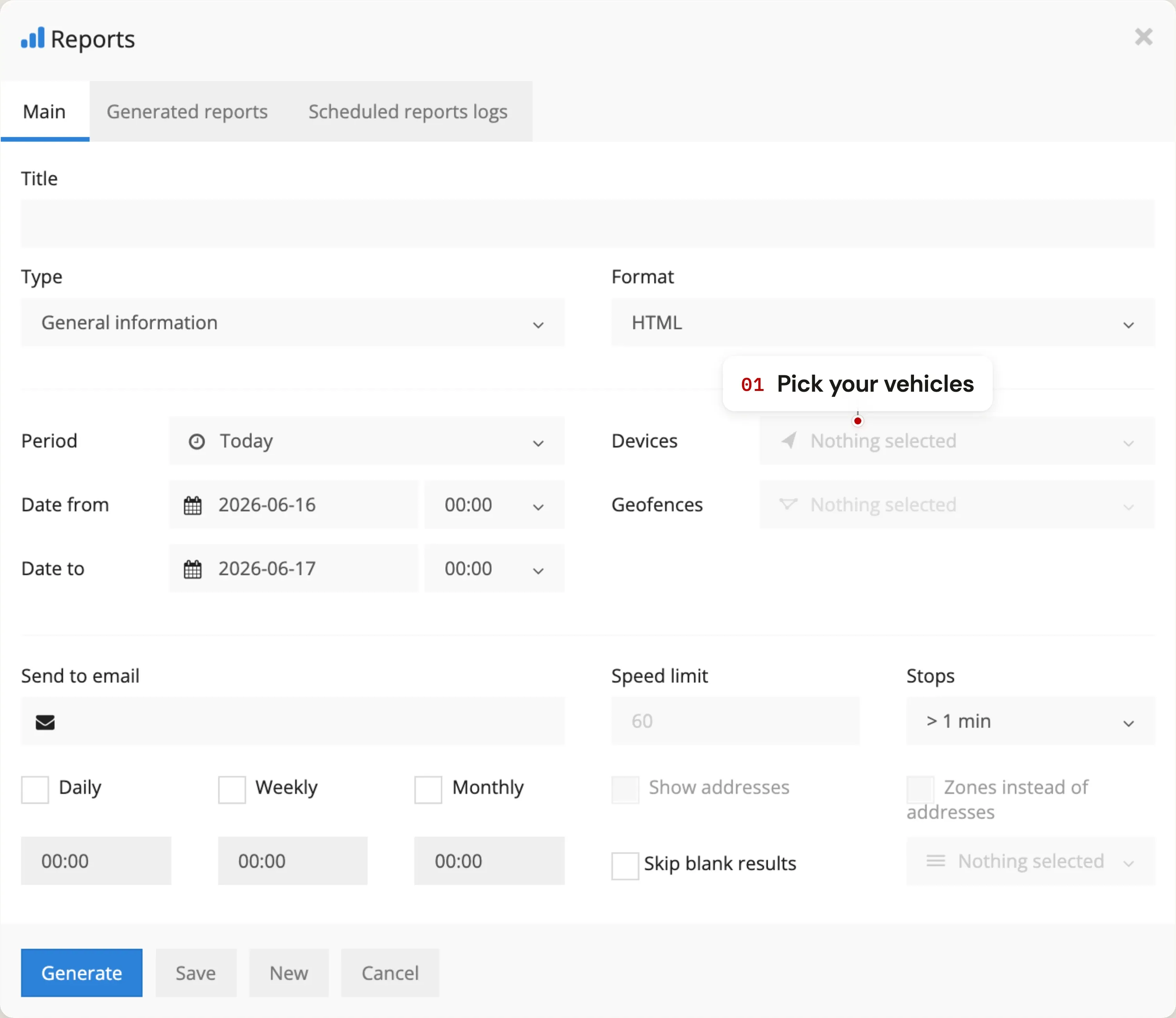
Tick the vehicles to include. Reports can cover a single vehicle, a group, or the entire fleet. For per-vehicle handovers and SARS logbooks, choose one vehicle per report. For fleet summaries, include them all.
- 07
Add the right filters
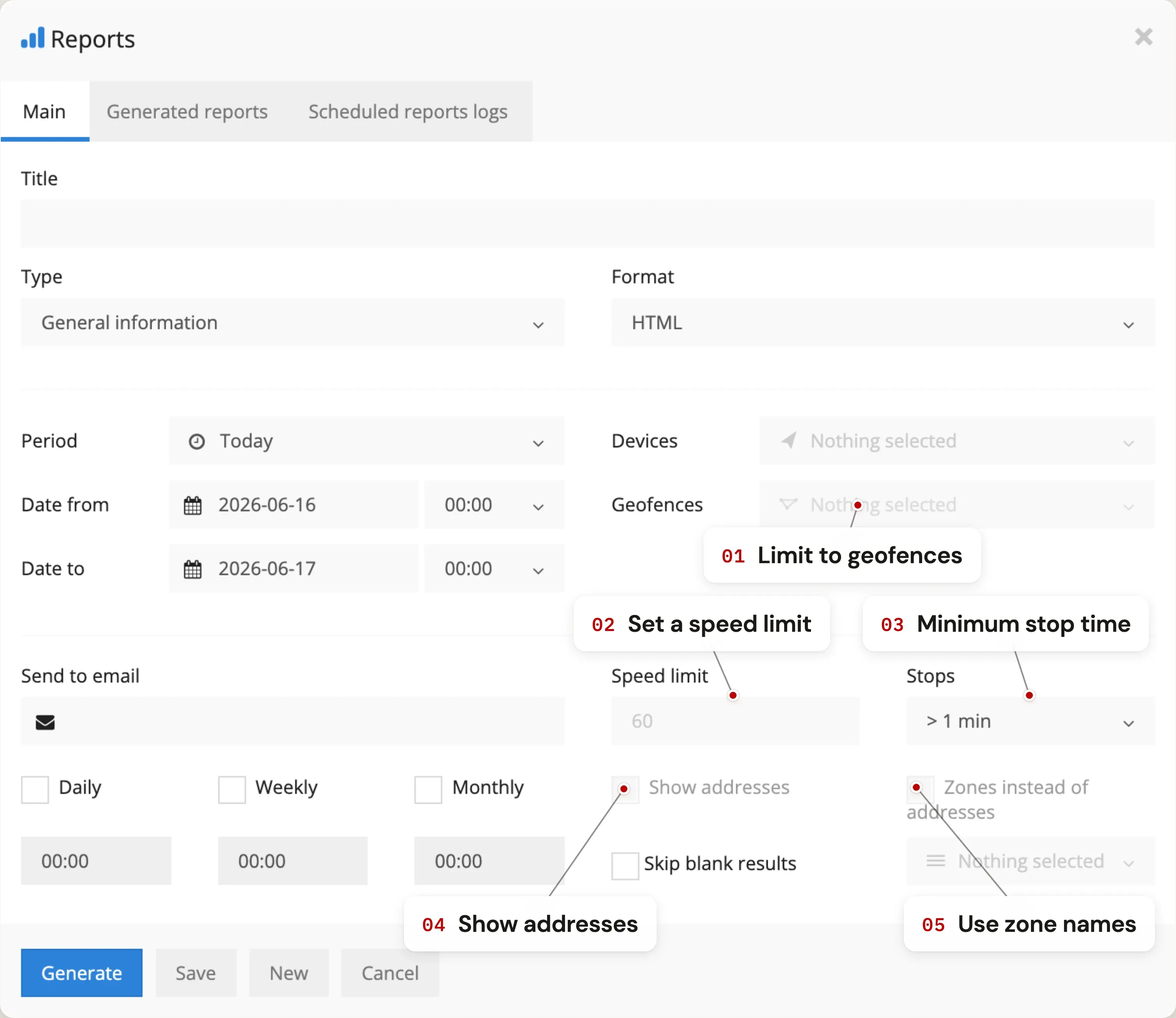
Depending on the report type, you'll see additional options:
- Geofences — appears for Geofence in / out reports. Tick which zones to include.
- Speed limit — appears for Overspeed. Set the threshold above which a case counts.
- Stops — set a minimum stop duration to filter out short traffic stops.
- Show addresses — show addresses instead of raw coordinates.
- Zones instead of addresses — use your geofence names in place of street addresses for sites you've geofenced.
- 08
Schedule it (optional)
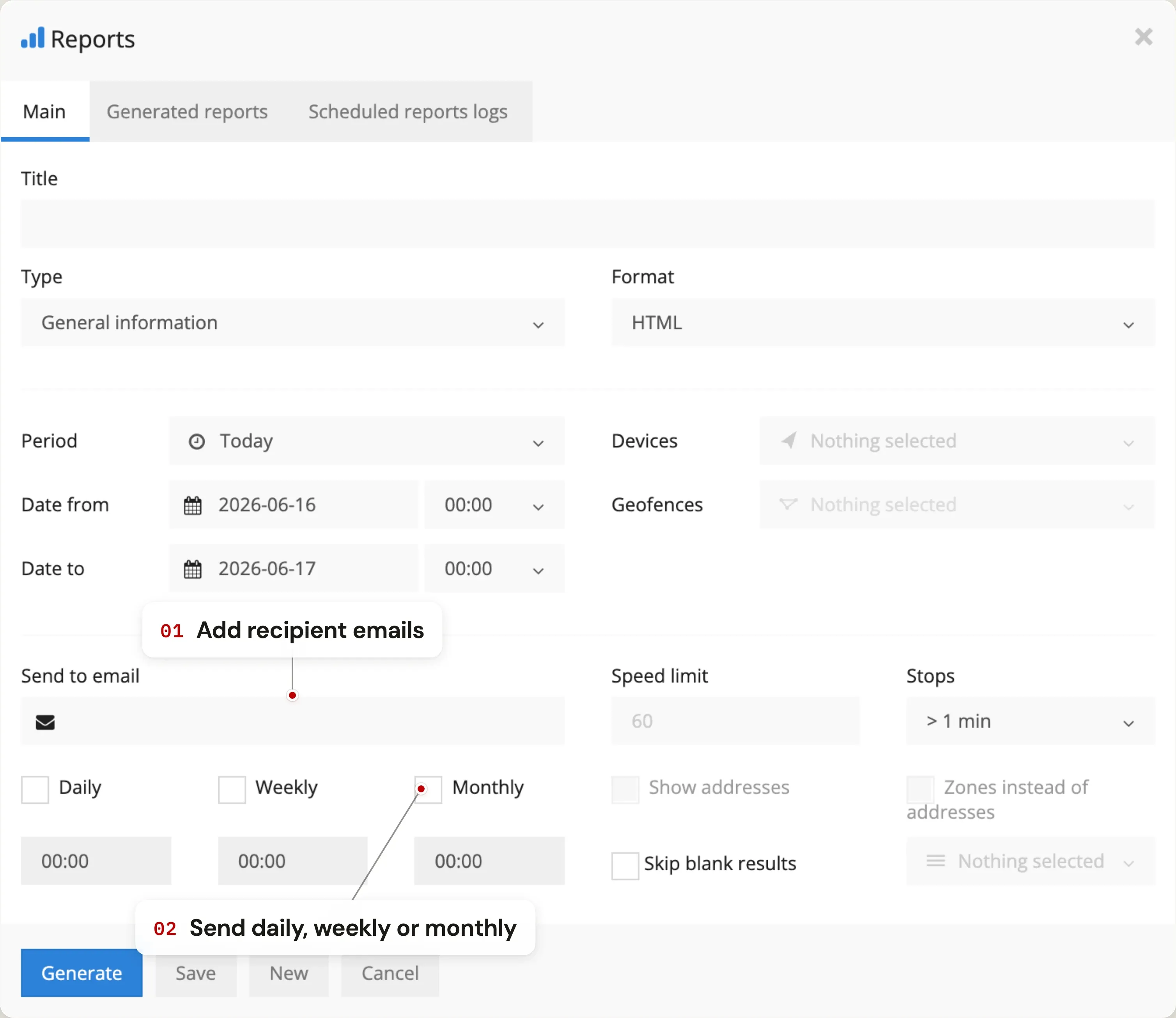
Open the Send to email field and add recipients. Then pick a schedule:
- Daily — emails every day for the previous day.
- Weekly — emails every Monday for the previous week.
- Monthly — emails on the 1st of every month for the previous month.
- 09
Save and run
Click save. The report is stored under Generated reports where you can edit, regenerate or delete it. Scheduled reports run automatically; you can also review every scheduled send under Scheduled report logs in case an email gets misplaced.
Building a useful reporting workflow
- Schedule a monthly report to keep your data. Tracking data is only kept for 90 days, so a small core set scheduled monthly — one travel sheet per vehicle, one fleet summary, one overspeed report — emails and banks each month before it ages out. Most fleets never need more than that.
- Use the travel-sheet report for SARS logbooks. Combined with the route-types tool, it produces a SARS-ready record.
- Schedule reports to multiple recipients. You can email a driver-behaviour report to the driver themselves and a manager at the same time — useful for accountability.
- Generated reports stay on the account. Even if you don't schedule them, every report you generate is filed under Generated reports so you can re-download or re-send it later.
Reports questions
What kinds of reports can the TTC platform produce?
Nine common types: general summaries, drives-and-stops, drive time, stops, travel sheet, overspeed, geofence in / out, event history and per-day breakdowns. Each can be filtered to specific vehicles, date ranges, geofences and (where relevant) speed thresholds. Reports are exportable as PDF, HTML or Excel.
Can reports be emailed automatically?
Yes. Any report can be scheduled to email itself daily, weekly or monthly to one or more recipients. The export (PDF / HTML / XLS) is attached. There's no limit on how many scheduled reports you can configure or how many recipients you can add.
How far back can I generate a report?
Tracking data is retained for 90 days, so a report can cover any date range within the last 90 days. Because of that window, we recommend scheduling a monthly report — it emails and archives each month's data automatically, so you keep a permanent record long after the raw data has aged out.
Can I export reports to Excel?
Yes. The XLS format is supported for every report type. This is the format most accountants and bookkeepers prefer because they can sort, filter and total columns in Excel directly.
Are reports included in the subscription price?
Yes. All report types, unlimited generation, scheduled emails and unlimited recipients are included in every TTC subscription from R50 / month. There are no paywalled "reporting" or "fleet" tiers.
Can I use a report to support a SARS logbook?
Yes. Use the travel-sheet (business / private) report. Together with the route-types tool, it produces a per-trip record of date, time, distance, start address, end address and trip classification — which covers most of what SARS asks for in a logbook submission.